
Leadership
Universal Disclosure Policy
Overview
ASAM has adopted a universal disclosure policy and implemented procedures to comply with principles developed by the Council of Medical Specialty Societies Code with Interactions with Companies.
All ASAM Board of Directors and Committee Members are now required to complete ASAM’s Universal Disclosure form annually to ensure the integrity of its policies, positions, publications, educational programming, and other services.
ASAM Council and Committee Chairs will be responsible for reviewing the disclosures prior to every meeting and will take action to mitigate any potential conflicts. In addition, each meeting will begin with an acknowledgment that the disclosure forms have been reviewed and to remind members to submit a new statement whenever changes in status occur.
ASAM is committed to ensuring the privacy of our members. The Universal Disclosure forms will be completed and securely stored in your ASAM Member Portal and restricted from public access with the exception of ASAM's Board of Directors disclosure forms which are made available to the public due to their role and fiduciary responsibilities to ASAM.
The Accreditation Council for Continuing Medical Education (ACCME) maintains certain regulations that may require different criteria to remain compliant for ASAM’s ability to provide continuing medical education credits. Therefore, if you are a member of an education committee, you may be required to submit additional disclosure forms to ensure compliance.
Please to log into your ASAM Member Portal. For instructions, please see below.
Universal Disclosure Instructions
How to Submit a Disclosure
- Log into your ASAM Member Portal
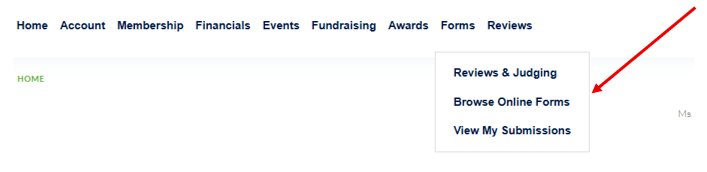
- Click on "Forms"
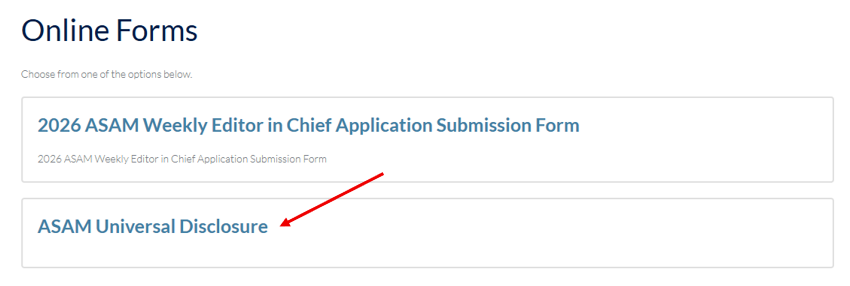
- Click on "Browse Online Forms"
- Click on "ASAM Universal Disclosure"
- Under "My Universal Disclosures," click on "SUBMIT UNIVERSAL DISCLOSURE"
- Confirm your name and credentials are correct, and the click on "Next"
- Complete the questions and click "Submit" to save your form
To confirm that you have submitted your form, go back to “Forms” then click “View My Submissions” and you will be able to see the date of submission and form name in your record at the bottom of the page.